The Mouse
The mouse is a mechanism called a "pointing device." You use it to move the mouse cursor on the screen.1
Here are some photos of common pointing devices.
The classic mouse.
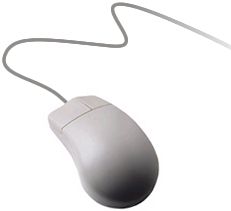
This is the pointing device most commonly thought of as a mouse. It uses a ball or a special light to detect movement as it is slid across a pad.
The "Touchpad".
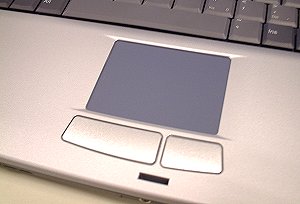
This device is commonly found on laptops. The user drags a finger along the surface to move the mouse cursor. Many touchpads support a feature called "tapping," which lets you click the mouse by tapping on the pad.
The "Trackball".
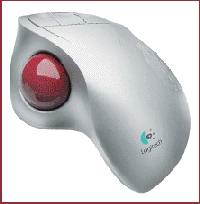
The trackball is operated by rolling the ball with the hand. A sensor inside the trackball detects the movement, and moves the mouse cursor accordingly.
The "Trackpoint".
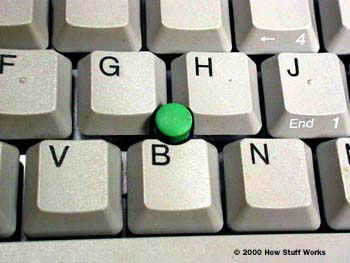
Sometimes humorously called an "eraser," after its look and feel, the trackpoint is normally only found on laptop computers. It is hard to learn to use effectively, but once you get used to it, it can be an effective pointing device.
The trackpoint is operated by applying force to the tip of the device with a finger. The mouse cursor moves in the direction of force, and if you press harder, it moves faster.
Basic Mouse Techniques
There are a few procedures that you should know by name to be able to understand instructions.
Before learning these, move the mouse around and watch the mouse cursor move across the screen.
1. "Point at" something.
If someone tells you to point at something, they mean for you to manipulate the mouse to get the mouse cursor to be positioned on the object you need to point at. Find the object in question on the screen, and move the mouse cursor so the tip of the arrow is located somewhere on the object.
2. "Click" or "Left Click."
If someone says to "click" the mouse, or to "left click" the mouse, they mean for you to press and release the primary mouse button. This is usually the button on the left. The press and release should be rapid, like tapping a key. 3. "Click on" something.
This just means to "Point at" something, follwed by a "Left Click."
4. "Right-Click."
If someone says to "right-click" the mouse, they mean for you to press and release the secondary mouse button. This button is usually on the right. Again, the click should be rapid, like tapping a key.
This technique is commonly used to bring up a "context menu," which is a list of operations for the computer to perform on the object the cursor is pointing at.
5. "Right-click on" something.
This is a "Point at" something, followed by a "Right-Click."
6. "Double-Click."
This is a more difficult technique requiring you to press and release the primary mouse button twice in quick succession.
7. "Double-click on" something.
Point at something, and Double-click. This can be difficult at first. Try not to move the mouse whil double-clicking, and practice this technique until you are good at it.
Advanced Mouse Techniques
These techniques are more difficult to perform properly than the basic techniques.
1. "Drag" X to Y.
This technique allows you to manipulate objects on the screen by picking them up with the mouse cursor and dropping them elsewhere. It is commonly called a Click-and-Drag.
To perform a drag, you:
Point at object X.
Push and hold down the primary mouse button. Make sure you have a good hold on it, because it won't be released until the end of the procedure.
Move the mouse to point to object Y. There is usually a visual indication that you are dragging, like the mouse cursor changin shape, or the object actually moving, to tell you that you are dragging, but this isn't always true.
Release the primary mouse button. This step is called a "Drop."
This technique is very useful. Here's one use for a drag: You can drag and drop items onto the Recycle Bin to get rid of them when you don't need them anymore.
2. "Right Drag".
This technique is like the Drag, but uses the secondary mouse button instead. A major difference is that the Right drag commonly causes a context menu to pop up at the end of the process, so you can select an operation to perform by clicking the item in the menu.
A possible use: If you right-drag a file to another place, you are given a choice to either copy, move, or make a shortcut to the original location. Copying an object makes a duplicate of it, so there is the object at the original location, as well as an exact copy of the object at the new location. A shortcut is an object that points to another object. If you double-click a shortcut, the computer will act as if you had double-clicked on the original object.
3. "Selecting" text.
To select some text in a block of text, you point at the place you want to start a selection and drag to the place you want to end the selection.
This creates a "selection cursor," and highlights the text you selected. Any text operation performed will now affect the whole selection cursor.
The Keyboard
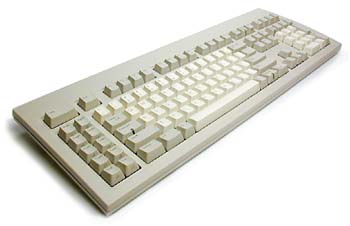
The keyboard is the primary device for inputting textual data. It acts very much like a typewriter.
Here is a picture of a keyboard.
Keyboard operation
If you have never used a keyboard or a typewriter before, you may not understand how some of the keys operate.
Shifting.
Shifting allows the keyboard to fit more functionality into fewer keys. The main shift key is called "Shift." It allows you to type uppercase letters and the symbols on the upper half of the number and punctuation keys.
To type a shift-character, you hold down the shift key and tap the character key you want.
Shift-lock (caps lock)
A shift lock is a keyboard operation that reverses the operation of a section of keys, making them perform their shift-characters instead.
The two main shift-locks are the Caps lock and the Num lock.
The Caps lock operates on the alphabetical keys only. It causes them to create uppercase characters instead of lower-case characters.
Holding the shift-key down while typing shifts all keys. If you hold down shift while Caps Lock is on, pressing a numeric or punctuation key will cause the shifted symbol, but pressing an alphabetical key will cause it to produce the lower-case character.
There is usually a light on the keyboard to signal that you are in caps-lock mode.
The Num lock only operates on the numeric keypad on the righthand side of a full-size keyboard. If Num lock is off, the keypad acts like arrow keys. If it is on, it creates numbers. Make sure you have Num lock on if you are using the numeric keypad. The num-lock also usually has an indicator on the keyboard.
Besides the shift key, there are other shifting keys, but they are used most often to perform operations instead of entering data.
The Alt key
The Alt key is used to operate menus in Windows. For example, to open the File menu of an application, you hold the left Alt key down and press the letter F.
An underlined letter in a menu usually signifies an Alt-key combination.
The Ctrl key
The Ctrl key (pronounced "Control") is usually used to perform operations on a selection cursor. You hold Ctrl and press the other key of a combination to perform an operation.
When using a shift, remember to hold the shift down, tap the key you want, and then release the shift.
Function keys
These keys were commonly used in earlier times. Each program could perform 40 user-defined functions by using the function keys. Many programs of the time came with a piece of plastic to put on your keyboard, to remind you which function key did what.
You may ask "But I only see 12 keys!," but the answer is relatively simple.
There are really only 10 keys, and four different ways to shift them!
Here's how it worked.
F01-F10 - Press the key alone.
F11-F20 - Hold Shift and press the key.
F21-F30 - Hold Ctrl and press the key.
F31-F40 - Hold Alt and press the key.
F11 and F12 on the keyboard are basically the same as Shift-F1 and Shift-F2!

